For Gemini and ChatGPT power users

Turn important AI replies into a knowledge workspace you can grow.

Topic Hashtag lets you capture exact responses, attach them to concepts, add your own notes, and explore the relationships later in a calm visual workspace.

  • Bind specific answers instead of losing them in long chats.
  • Build concept links with upstream and downstream relationships.
  • Reopen the exact response later, with your own anchor note.
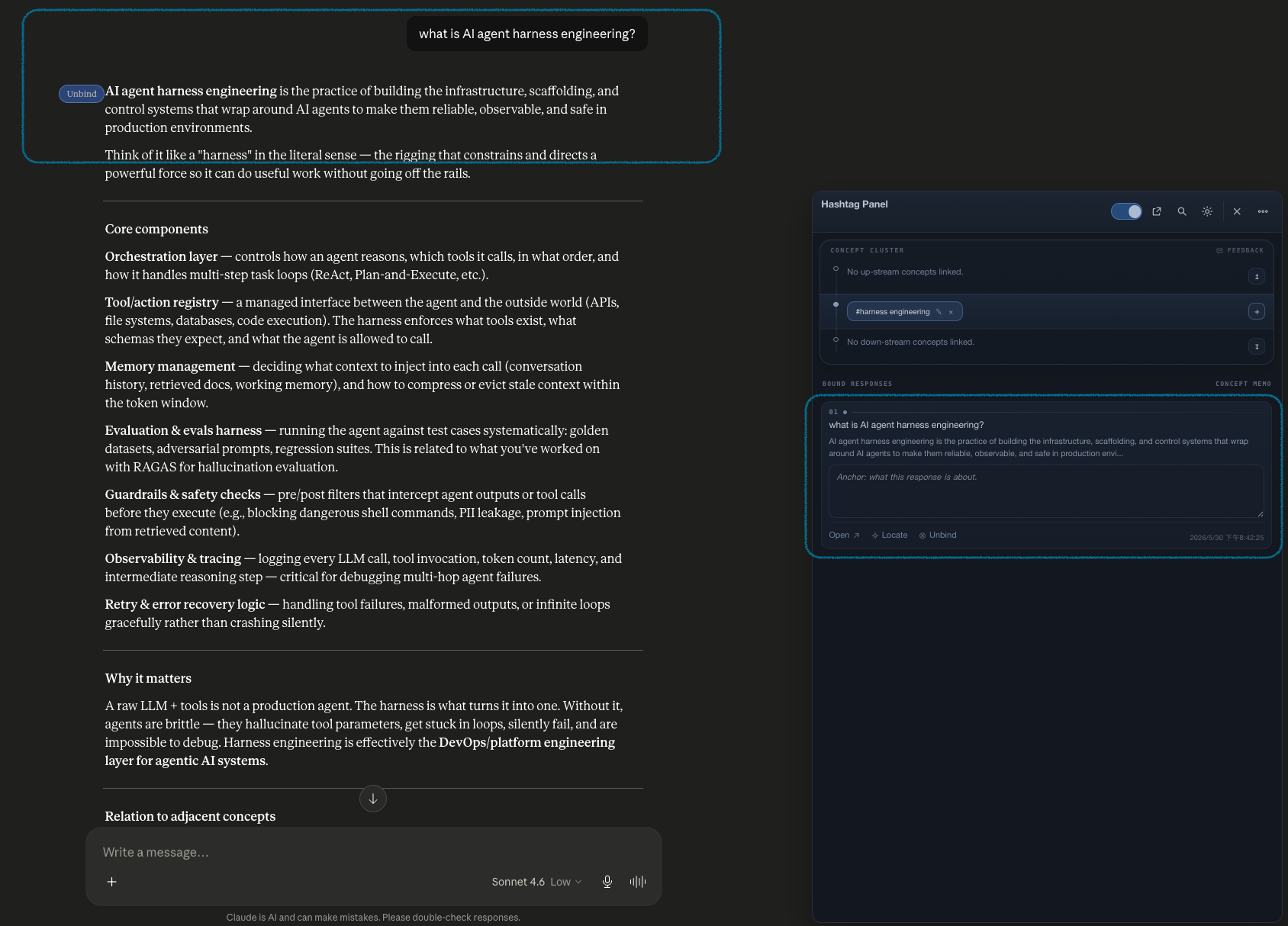
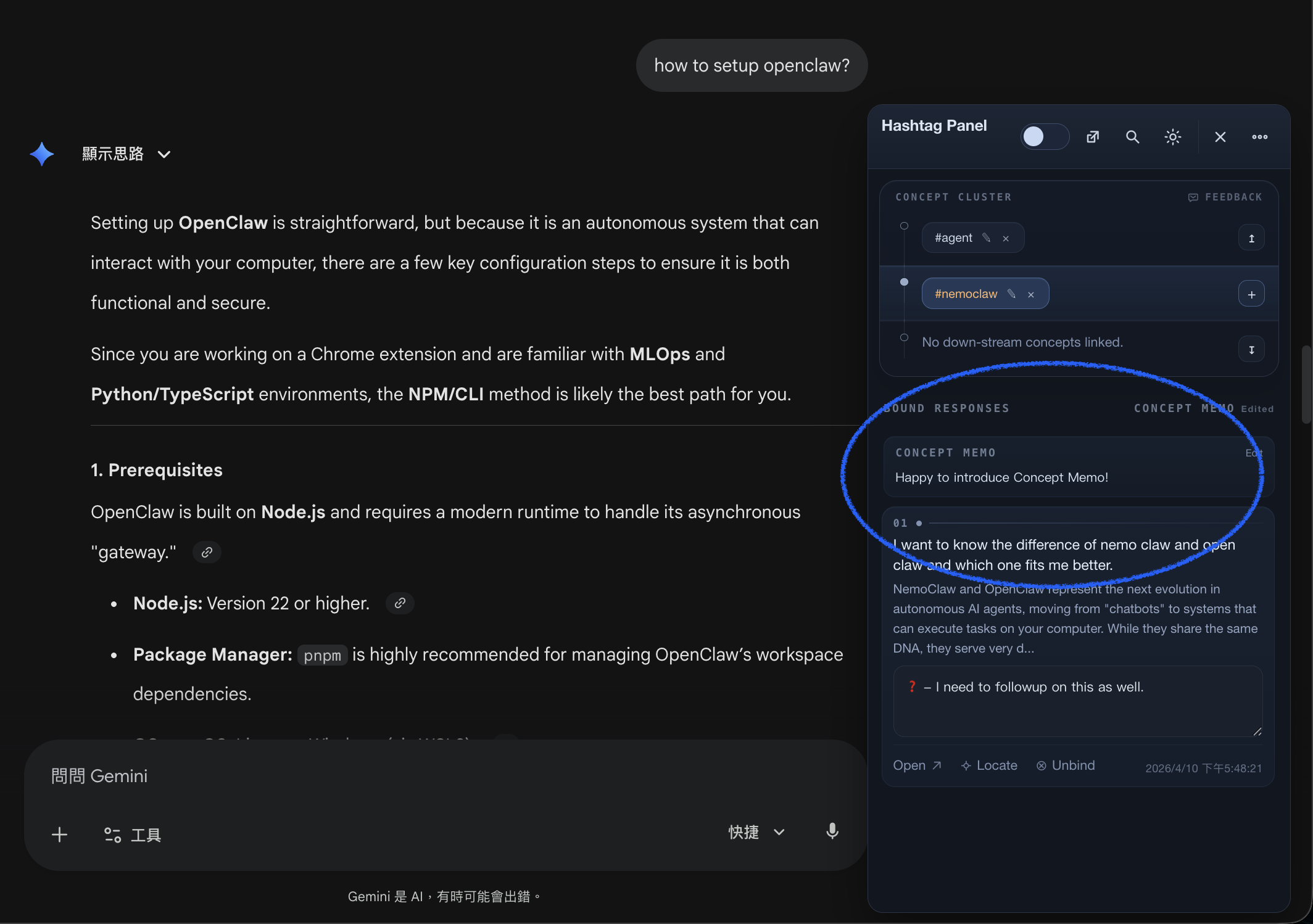
Topic Hashtag panel over a Gemini conversation

What makes it useful

You are not just saving chats. You are turning scattered AI moments into connected, reviewable concepts.

Capture

Exact replies

Save the response that mattered, not a vague memory of the conversation.

Explain

Anchor notes

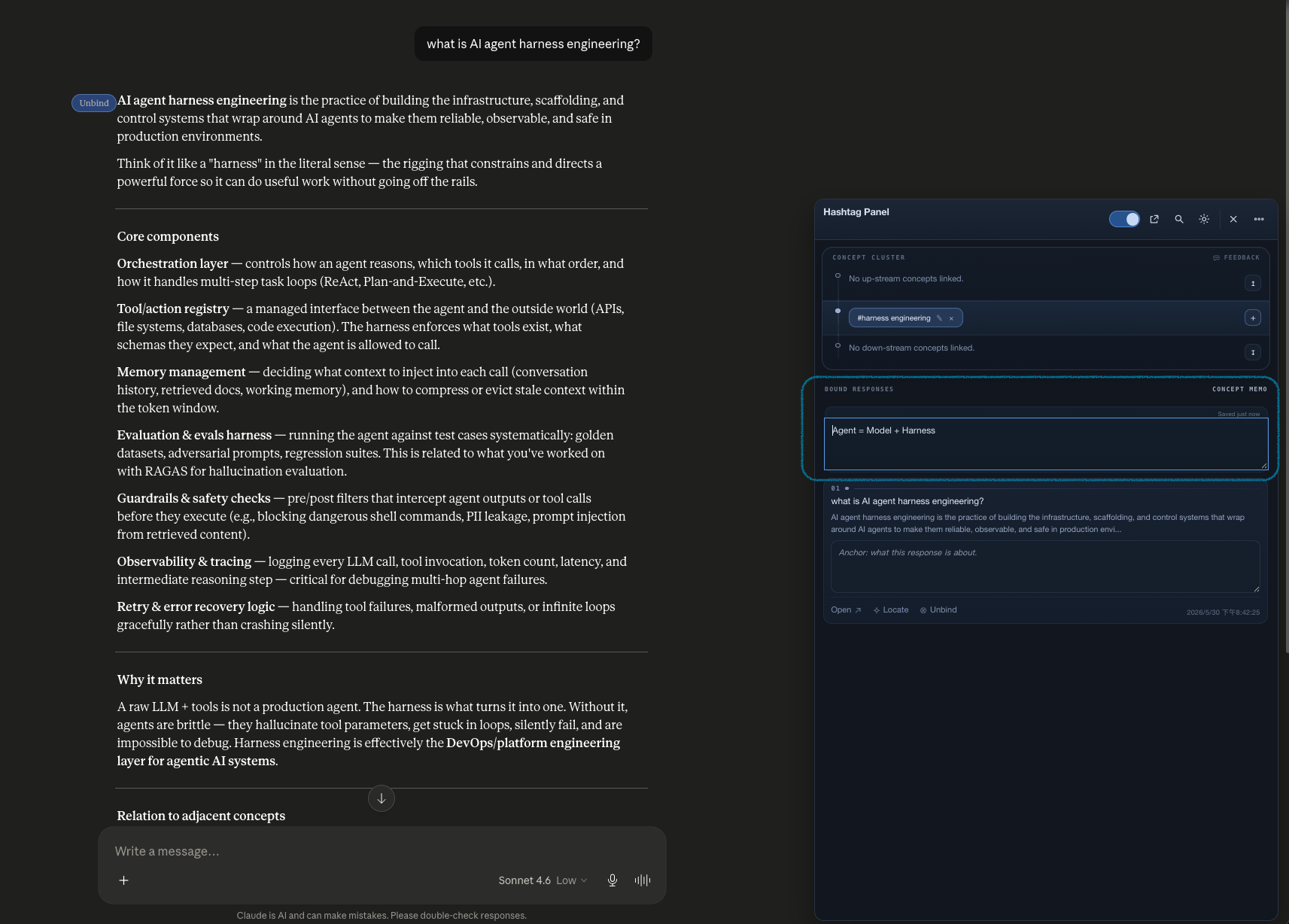
Add your own reason for why a response matters before context fades away.

Connect

Linked concepts

Grow a map of related hashtags instead of keeping isolated snippets.

Feature Tour

See the product the way a new user should.

The Chrome Web Store gives you a summary. This page shows the workflow in detail so people understand what Topic Hashtag actually feels like to use.

Inside Gemini or ChatGPT

The panel stays close to the conversation.

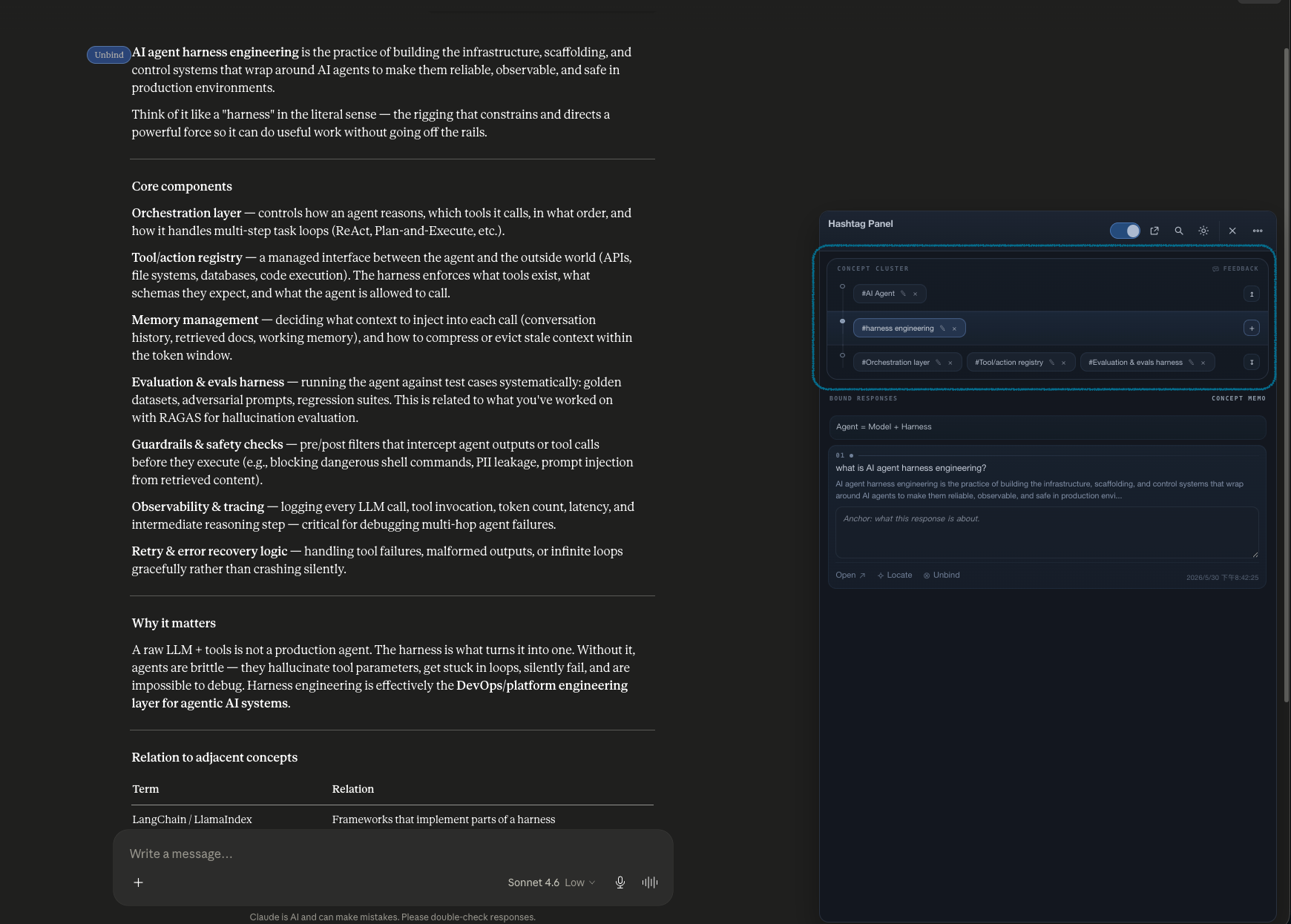
Topic Hashtag adds a compact panel directly on supported chat pages so you can create concepts while the idea is still fresh. Upstream, current, and downstream layers make the relationships visible immediately.

  • Floating panel in the corner of the chat page.
  • Three concept layers for directional relationships.
  • Fast editing, linking, renaming, and deleting from one place.
Panel view inside a Gemini chat

Bound responses

Keep the answer and your reason for keeping it.

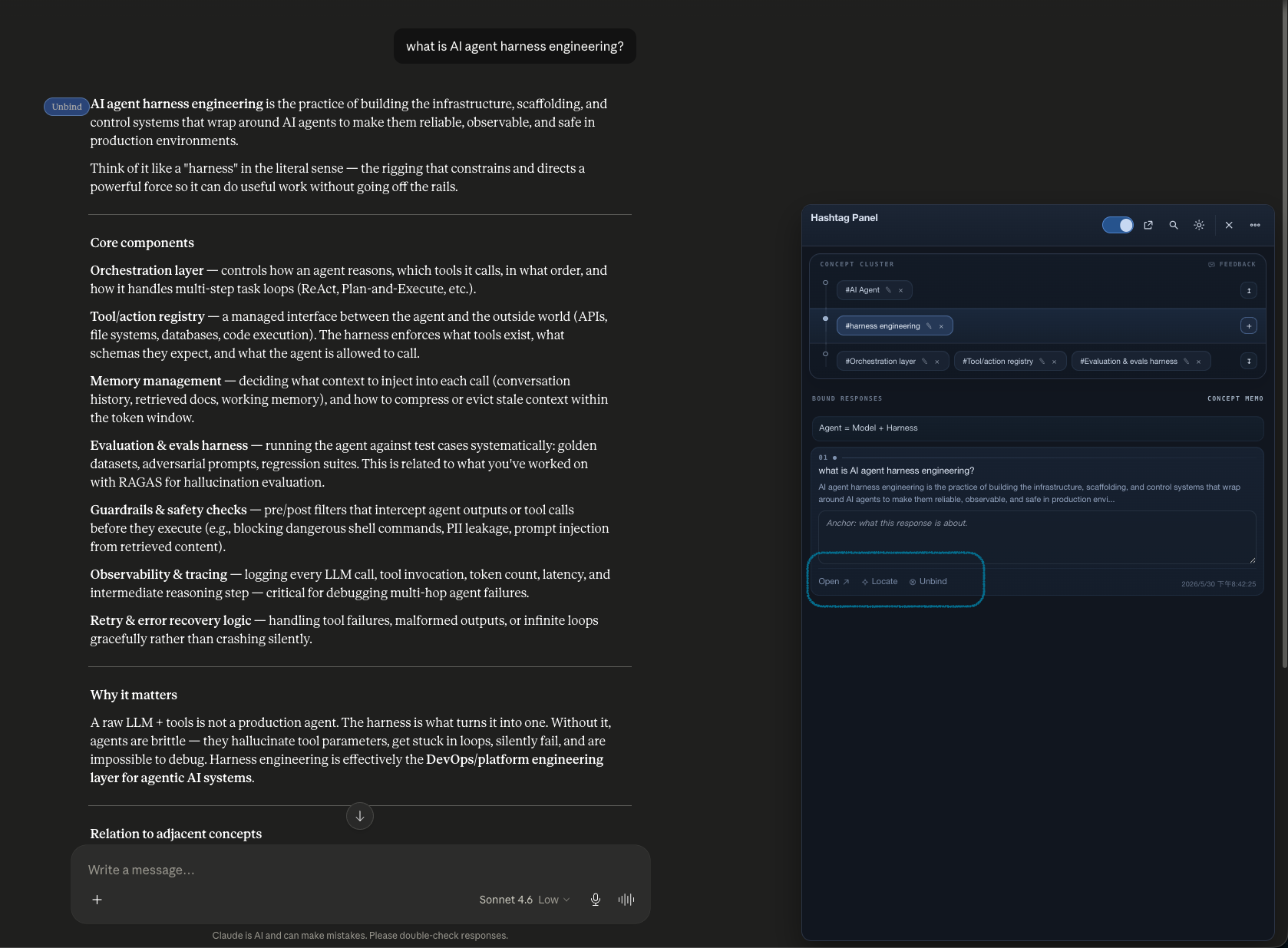
Each binding can include the source question, a snippet preview, and your own anchor note. That makes the saved response easier to understand when you return to it days later.

  • Open or locate the saved response in the original conversation.
  • Add a short note about why the response matters.
  • Unbind outdated replies without deleting the concept itself.
Bound responses section showing saved response details

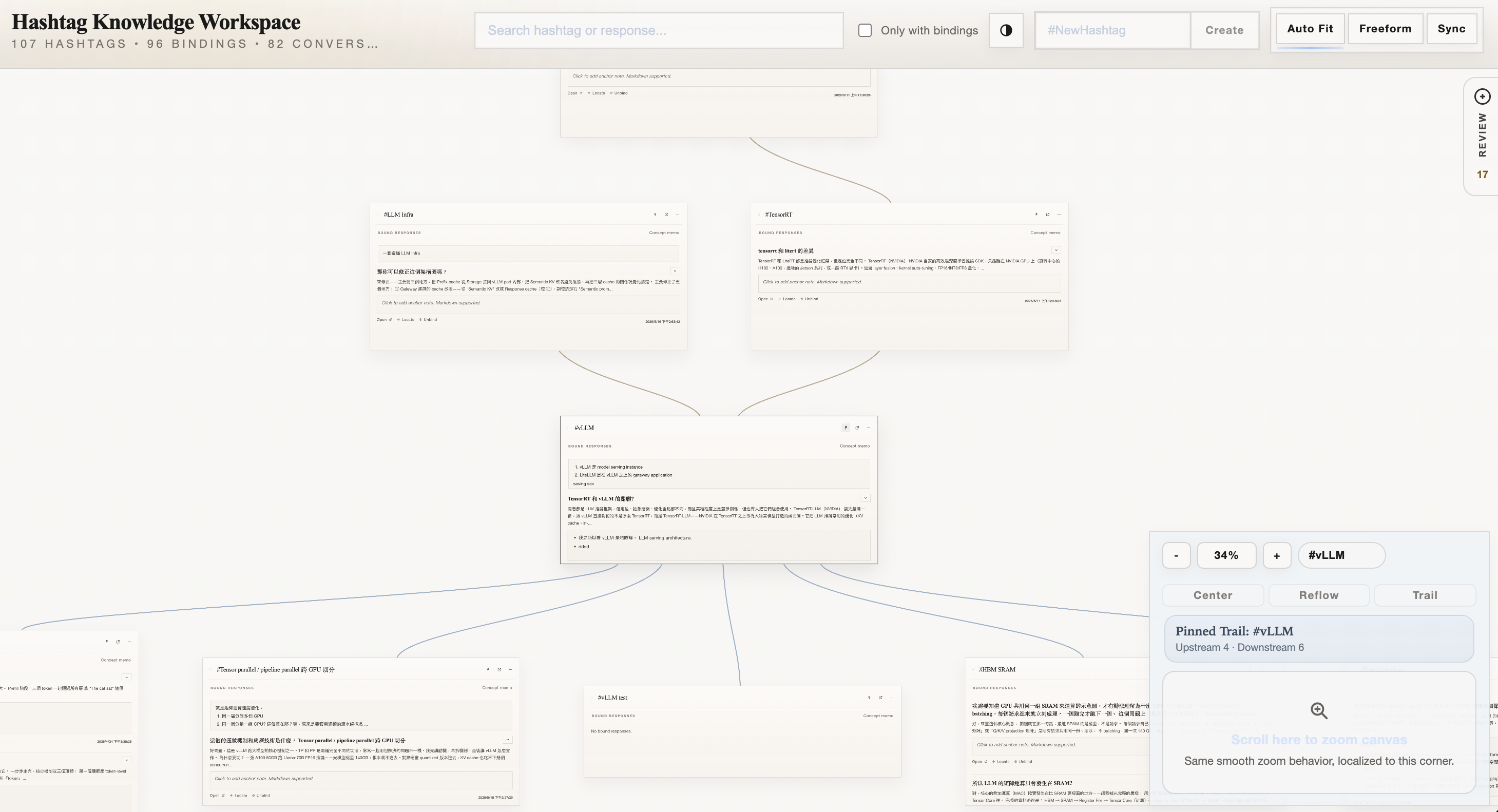
Knowledge workspace

Review your concepts in a calm, explorable canvas.

When the panel helps you capture ideas, the workspace helps you study them. You can drag concept cards around, resize them, review notes, and follow graph connections without digging through old chat tabs.

  • Draggable, resizable concept cards.
  • Zoomable canvas with visible link directions.
  • Search across hashtags and saved responses.
Knowledge workspace with cards
Knowledge workspace overview

Portability

Keep ownership with local storage, export, and optional sync.

The core experience works locally in Chrome storage. When you want backup or continuity across devices, you can export the workspace as JSON or opt into a Google Drive sync file that stays in your own Drive.

  • Local-first behavior by default.
  • Manual export and import for backup or migration.
  • Optional Google Drive sync for one visible workspace file.
Google Drive sync controls inside the knowledge workspace

How It Works

A simple loop: capture, label, connect, review.

1

Spot a useful answer

While you are talking to Gemini or ChatGPT, turn on capture mode and save the response worth keeping.

2

Attach it to a concept

Bind the response to a hashtag so the conversation becomes part of a reusable idea, not a one-time interaction.

3

Explain the connection

Add a short note about why the response matters, what it clarified, or how it relates to adjacent concepts.

4

Return later with context

Open the workspace to review the graph, find related ideas, and jump back to the original response when needed.

Why it is different

It is built for concept-building, not just clipping.

Most chat tools help you generate content. Topic Hashtag helps you keep the parts that shaped your understanding and organize them into an evolving structure.

Useful for

Study, research, planning, and long-running learning threads.

Use it when you are comparing frameworks, collecting prompts, tracing definitions, preserving explanations, or building your own personal reference map from AI chats.

Privacy

Local by default. Portable when you want it.

Topic Hashtag stores data in Chrome locally unless you explicitly export or enable sync. Google Drive integration is optional, and when enabled it writes one workspace file into your own Drive folder.

  • Core usage does not require external upload.
  • Export JSON whenever you want a portable backup.
  • Google Drive sync is opt-in and user-controlled.

FAQ

Questions a new user is likely to ask.

Does this replace bookmarks or note apps?

Not exactly. It sits earlier in the process. It helps you catch useful AI replies at the moment of discovery, label them as concepts, and review them later in a more connected way.

What kinds of chats does it support?

The current extension targets Gemini and ChatGPT chat pages. The panel appears on supported domains so you can work directly where the conversation happens.

Can I move my data or keep a backup?

Yes. The workspace can be exported as JSON and imported later. Optional Google Drive sync adds a second path for continuity across devices.

What should I do after reading this page?

Install the extension from the Chrome Web Store, then start by saving one concept from a real conversation. The product becomes much clearer after the first bound response and note.

A calmer way to keep what matters

Topic Hashtag helps your best AI conversations stay useful after the tab closes.

From one saved response to a connected workspace, the goal is simple: make the valuable parts of AI-assisted thinking easier to revisit, understand, and extend.

Back to Top